Active sessions show devices or browser sessions associated with your account. End sessions you no longer use, and investigate anything you do not recognize.
Before you start
Sign in to the account you want to use. Creator-only controls appear only for accounts with the relevant access. If you manage someone else’s account, confirm you are in the correct workspace before making a change. The pictures use fictional example data; your balances, names, available options and screen layout may differ.
Step by step
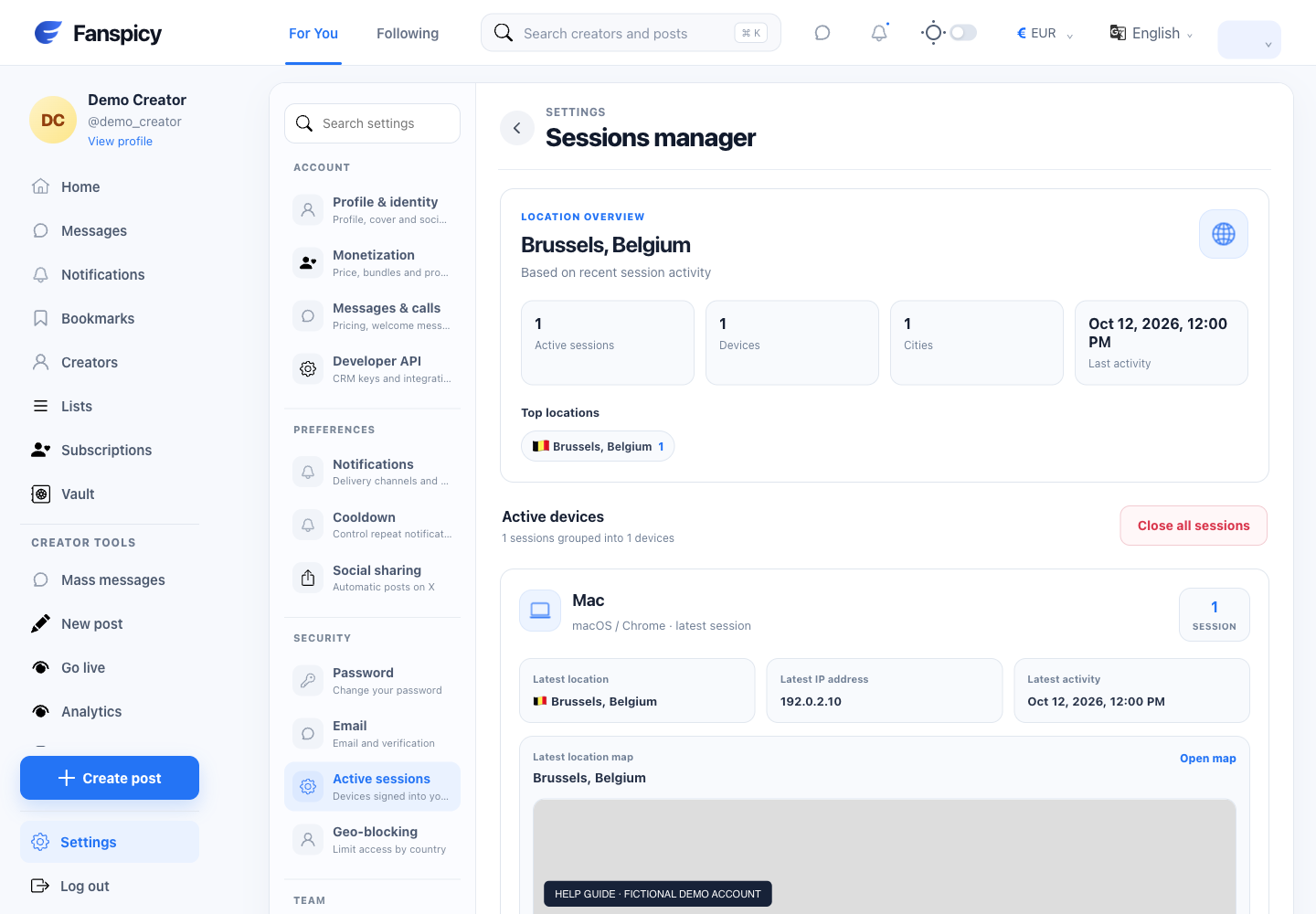
- Open Settings → Active sessions.
- Review the device descriptions and activity details displayed.
- Use the control for one session or all sessions, depending on what you intend to close.
- Read the confirmation carefully: closing your current session signs you out too.
- Sign back in if necessary and review the remaining sessions.
Check the result
Confirm that the selected sessions are no longer listed as active. Ending a session is different from deleting your account.
If something is not working
If you see unfamiliar access, use the account-security controls and tell human support about any unrecognized changes or purchases. Do not send complete device tokens or session credentials.
When reporting a problem, include the page, approximate time, what you expected and what happened instead. A screenshot of the error can help. Hide private messages and payment details that are unrelated to the issue. Never send your password, verification code, recovery code or API secret.