Cooldown settings help control repeated notifications. They affect notification frequency, not whether the underlying activity happened.
Before you start
Sign in to the account you want to use. Creator-only controls appear only for accounts with the relevant access. If you manage someone else’s account, confirm you are in the correct workspace before making a change. The pictures use fictional example data; your balances, names, available options and screen layout may differ.
Step by step
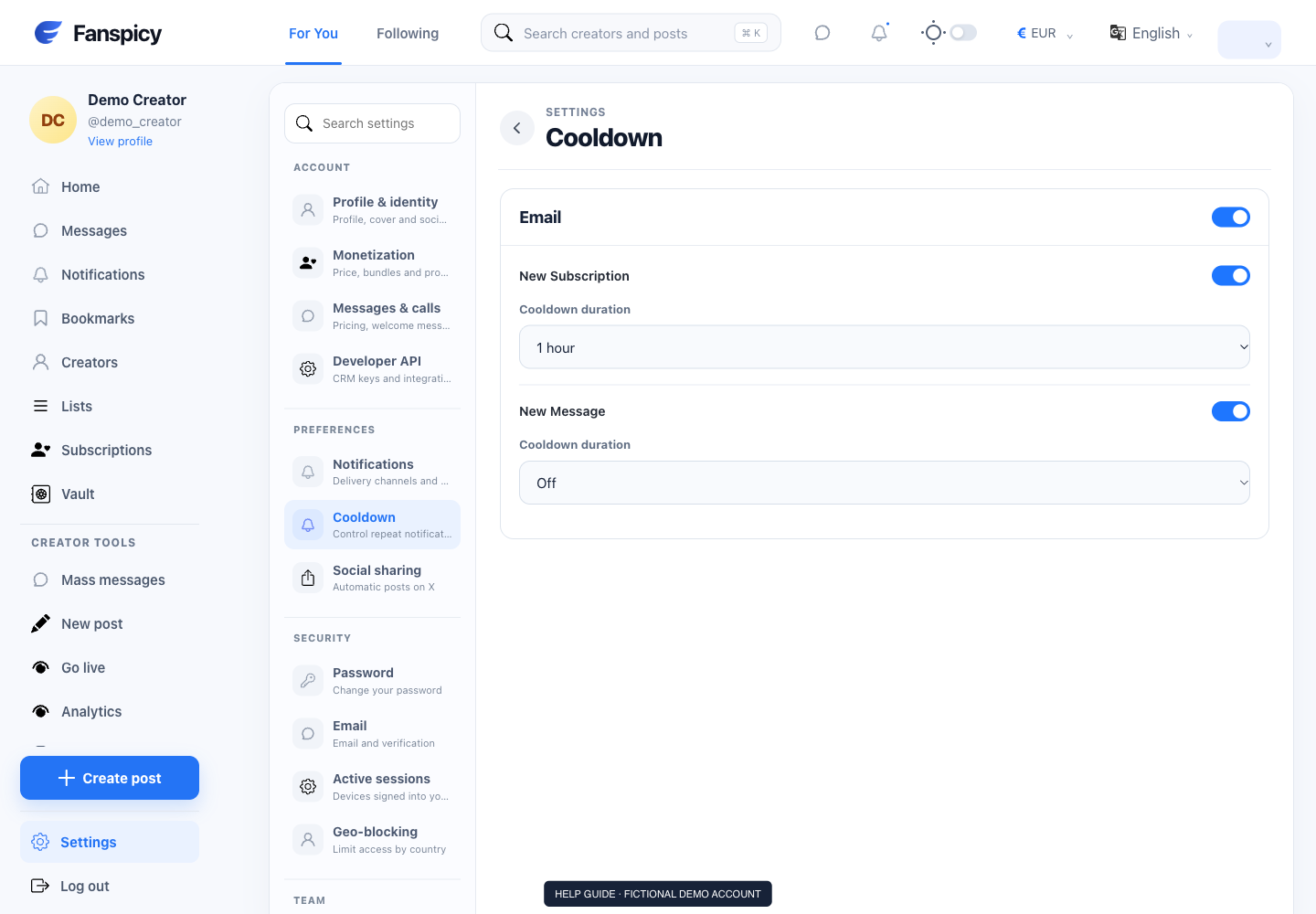
- Open Settings → Cooldown.
- Review the notification categories shown for your account.
- Choose a supported cooldown value using the displayed controls.
- Save the settings if requested.
- Check Notifications for the actual event history.
Check the result
Confirm your saved settings. Do not use a cooldown interval as a promise that an email or alert will arrive at an exact time.
If something is not working
If alerts still repeat, report which channel and event type is involved. Include the approximate timestamps and omit unrelated private content.
When reporting a problem, include the page, approximate time, what you expected and what happened instead. A screenshot of the error can help. Hide private messages and payment details that are unrelated to the issue. Never send your password, verification code, recovery code or API secret.