Your profile introduces you to fans. Keep your name, bio, images and links accurate so visitors know whose page they are viewing and what you share.
Before you start
Sign in to the account you want to use. Creator-only controls appear only for accounts with the relevant access. If you manage someone else’s account, confirm you are in the correct workspace before making a change. The pictures use fictional example data; your balances, names, available options and screen layout may differ.
Step by step
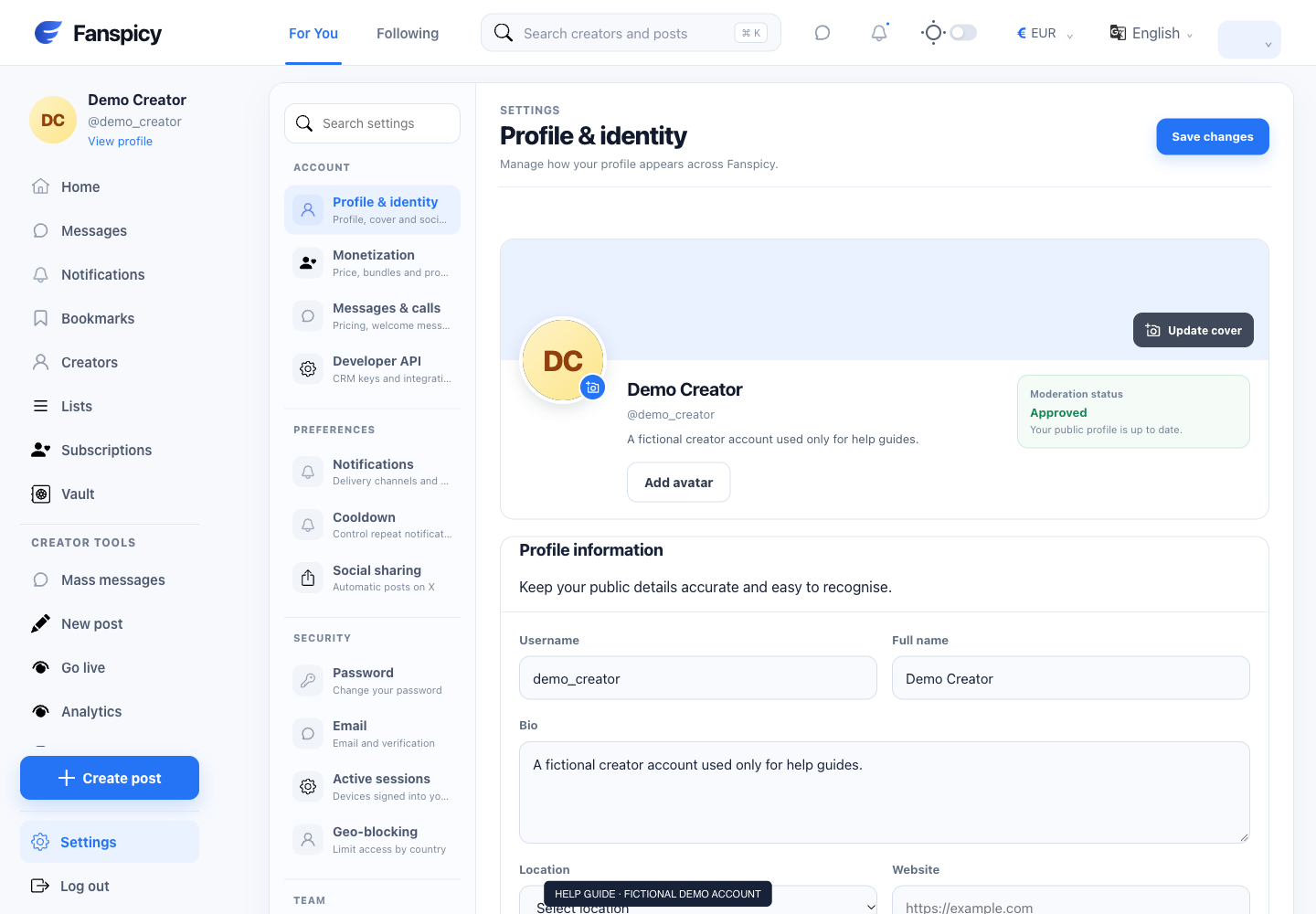
- Open Settings, then Profile & identity.
- Review your username, full name and bio. Check spelling and make sure your public information is appropriate to share.
- Use Add avatar or Update cover to choose a profile image. Wait for processing and review any moderation status shown.
- Choose your location and relevant categories. Add your website or social accounts using the fields provided.
- Check the Public posts setting if you want visitors to preview posts marked public.
- Select Save changes. Open your public profile to check the result.
Check the result
Check the saved fields and image status separately. A successful upload does not necessarily mean an image has passed moderation. A public-post setting does not make every paid post free.
If something is not working
If a save fails, keep the error message and identify which field was changed. If an image is pending or declined, check the displayed moderation state rather than repeatedly uploading it.
When reporting a problem, include the page, approximate time, what you expected and what happened instead. A screenshot of the error can help. Hide private messages and payment details that are unrelated to the issue. Never send your password, verification code, recovery code or API secret.