You can change a known password in Settings. Password resets and account recovery need human support; the AI assistant must not request or handle your password or login codes.
Before you start
Sign in to the account you want to use. Creator-only controls appear only for accounts with the relevant access. If you manage someone else’s account, confirm you are in the correct workspace before making a change. The pictures use fictional example data; your balances, names, available options and screen layout may differ.
Step by step
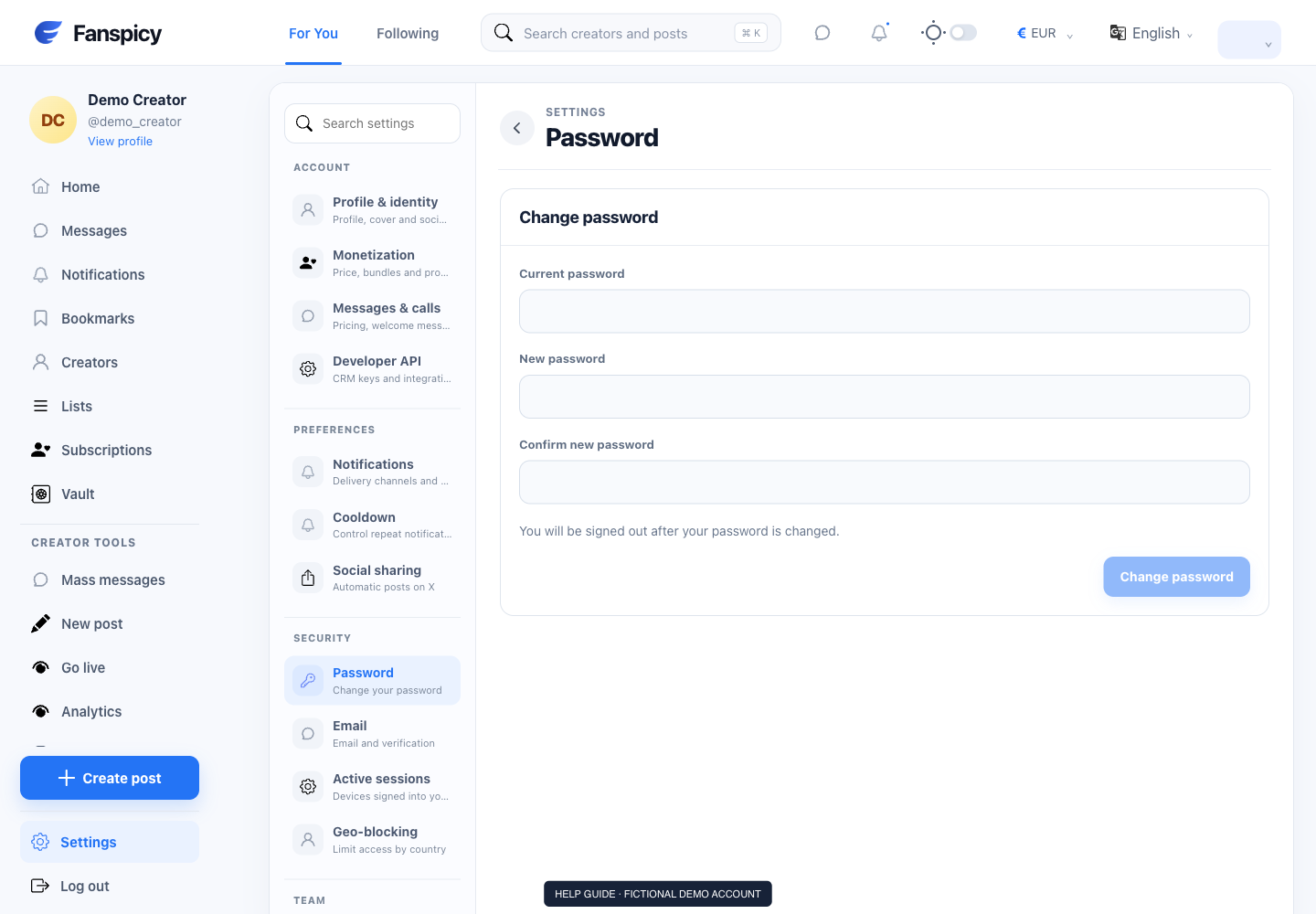
- If you are signed in and know your password, open Settings → Password.
- Enter your current password in the website field, not in chat.
- Enter a new unique password and repeat it in the confirmation field.
- Follow the password rules displayed by the form and submit the change.
- After the website signs you out, sign in with the new password. If you cannot access the account, open a human support request.
Check the result
A password change is complete only after the website confirms it. Do not assume a support conversation changed your credentials.
If something is not working
If recovery is required, explain that you cannot sign in. A human agent will handle the recovery process through the approved channel. Never paste a login or recovery code into AI chat.
When reporting a problem, include the page, approximate time, what you expected and what happened instead. A screenshot of the error can help. Hide private messages and payment details that are unrelated to the issue. Never send your password, verification code, recovery code or API secret.