Some payout records have a transfer confirmation available. Availability is checked per payout; a missing document does not itself prove a transfer failed.
Before you start
Sign in to the account you want to use. Creator-only controls appear only for accounts with the relevant access. If you manage someone else’s account, confirm you are in the correct workspace before making a change. The pictures use fictional example data; your balances, names, available options and screen layout may differ.
Step by step
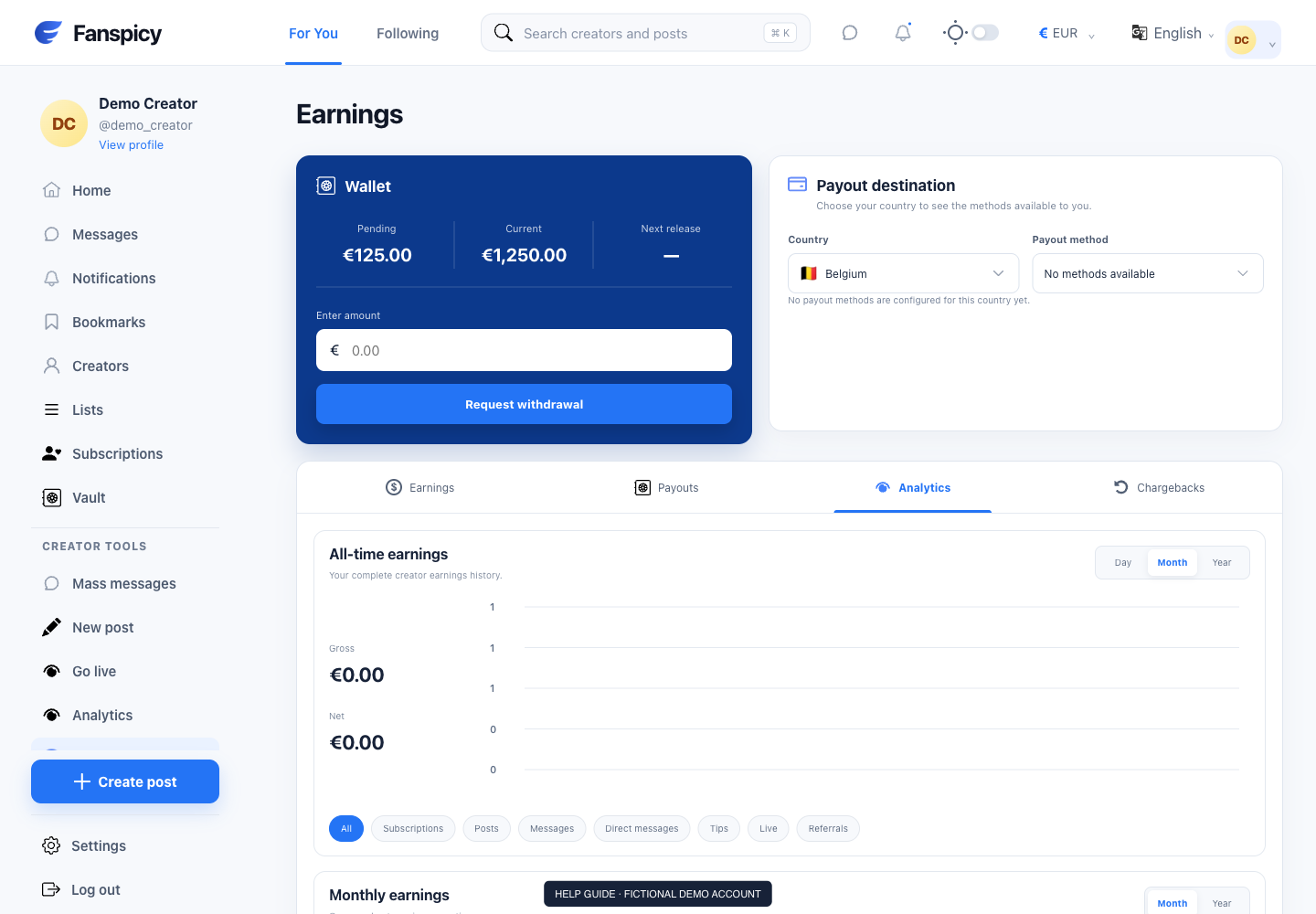
- Open Earnings → Payouts.
- Find the payout you want to review.
- Use the confirmation control when it is available for that row.
- Review the Transfer confirmation preview and check the payout reference.
- Use Download confirmation if you need a copy for your records or your bank.
Check the result
A confirmation document and confirmed receipt in the destination account are different pieces of evidence. Only share the document with appropriate recipients.
If something is not working
If the confirmation will not load, report the payout reference and the error. Support should check document availability rather than inventing a receipt.
When reporting a problem, include the page, approximate time, what you expected and what happened instead. A screenshot of the error can help. Hide private messages and payment details that are unrelated to the issue. Never send your password, verification code, recovery code or API secret.