Monetization settings control how fans see your subscription offers. Review each offer’s terms before saving; a displayed subscription price is different from the price of an individual paid post or DM.
Before you start
Sign in to the account you want to use. Creator-only controls appear only for accounts with the relevant access. If you manage someone else’s account, confirm you are in the correct workspace before making a change. The pictures use fictional example data; your balances, names, available options and screen layout may differ.
Step by step
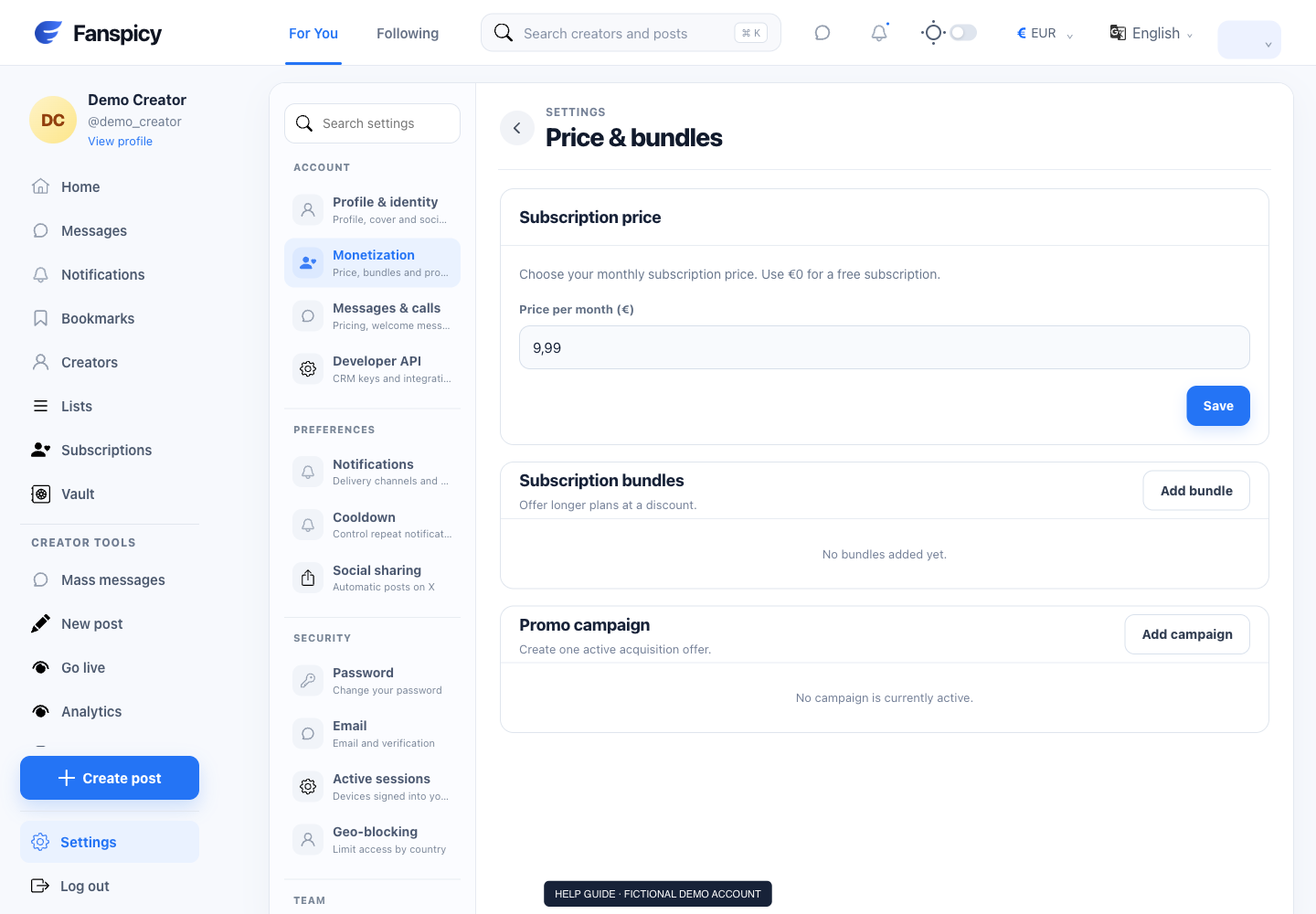
- Open Settings → Monetization.
- Review the subscription price and currency shown on the page.
- Use the bundle controls for the subscription periods you want to offer. Check each amount before saving.
- Review promotional offer controls and any eligibility or duration fields visible for your account.
- Save the change and open your creator profile to review the offer as displayed.
- For an existing subscriber’s billing question, check that subscription record rather than assuming a new offer changed an earlier agreement.
Check the result
Your creator page should show the saved offer. Do not assume every existing subscriber, renewal or purchase uses the new offer without checking the relevant record.
If something is not working
If an offer looks incorrect, report the displayed price, period and whether you are viewing it as the creator or a fan. Do not create a real purchase just to test a price.
When reporting a problem, include the page, approximate time, what you expected and what happened instead. A screenshot of the error can help. Hide private messages and payment details that are unrelated to the issue. Never send your password, verification code, recovery code or API secret.