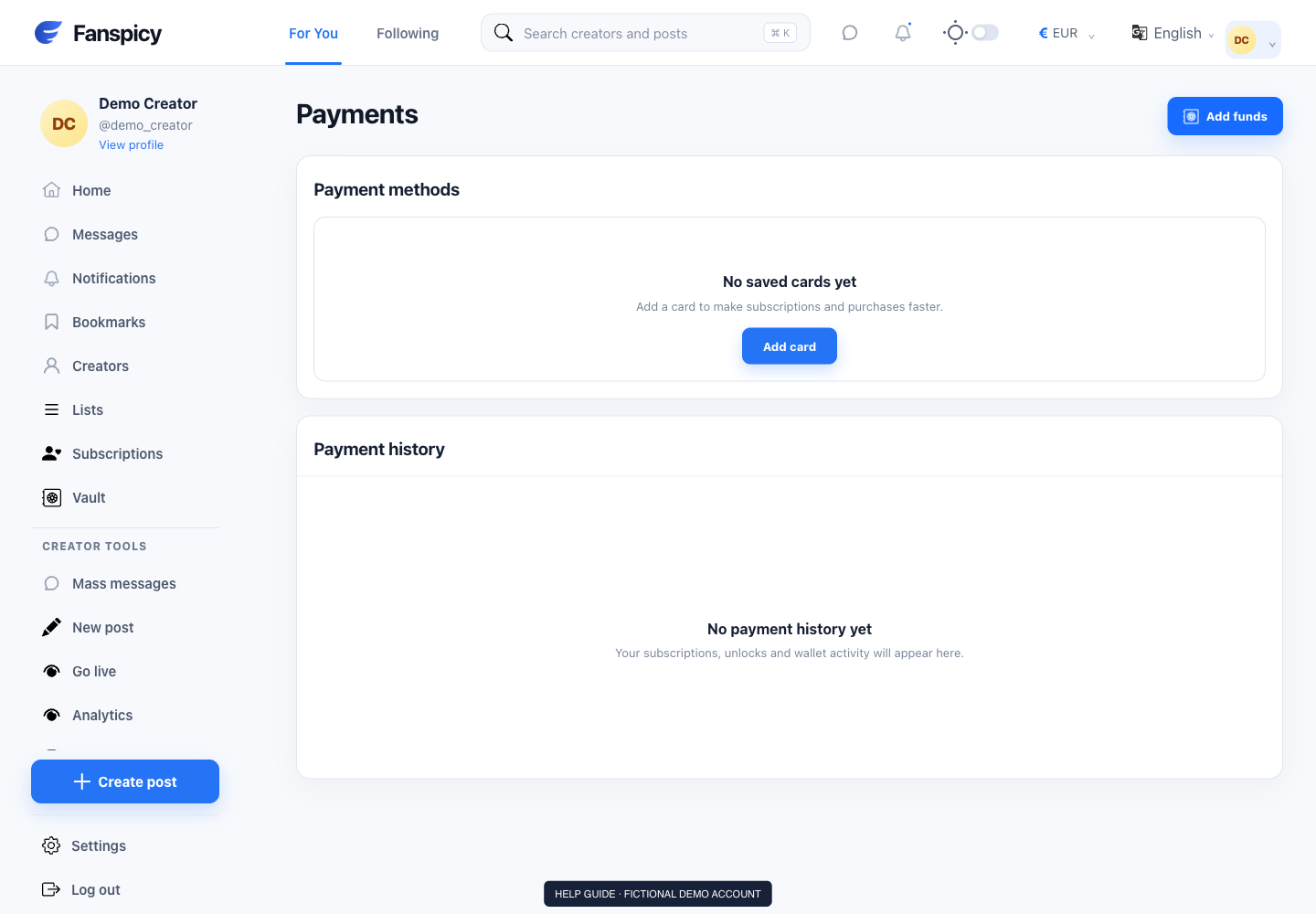
Payments shows purchases and saved payment-method controls available to your account. A wallet top-up, subscription, paid post, paid DM and tip are different transactions.
Before you start
Sign in to the account you want to use. Creator-only controls appear only for accounts with the relevant access. If you manage someone else’s account, confirm you are in the correct workspace before making a change. The pictures use fictional example data; your balances, names, available options and screen layout may differ.
Step by step
- Open Payments from your account navigation.
- Review the payment history and locate the amount and date you need.
- Check the transaction type and status before assuming it activated a subscription.
- Review saved payment methods in the same workspace.
- Use the available add, update or remove controls and read any confirmation before proceeding.
- If a purchase remains unresolved, open support with the transaction reference.
Check the result
A successful payment and access to the intended content should be checked separately. A pending or failed payment must not be described as completed. Removing a payment method does not necessarily stop an existing subscription renewal.
If something is not working
Do not repeat a payment to resolve an unclear status. Report the visible error and approximate time; never share a complete card number, security code or banking login.
When reporting a problem, include the page, approximate time, what you expected and what happened instead. A screenshot of the error can help. Hide private messages and payment details that are unrelated to the issue. Never send your password, verification code, recovery code or API secret.