Bookmarks and lists help organize content or people. Saving something does not buy access or change a subscription.
Before you start
Sign in to the account you want to use. Creator-only controls appear only for accounts with the relevant access. If you manage someone else’s account, confirm you are in the correct workspace before making a change. The pictures use fictional example data; your balances, names, available options and screen layout may differ.
Step by step
- Use a post’s bookmark control when you want to find it again.
- Open Bookmarks from the main menu to review saved posts.
- Open Lists to see the lists available to your account.
- Create or open a list using the displayed controls.
- Review the people in a list and update its membership as needed.
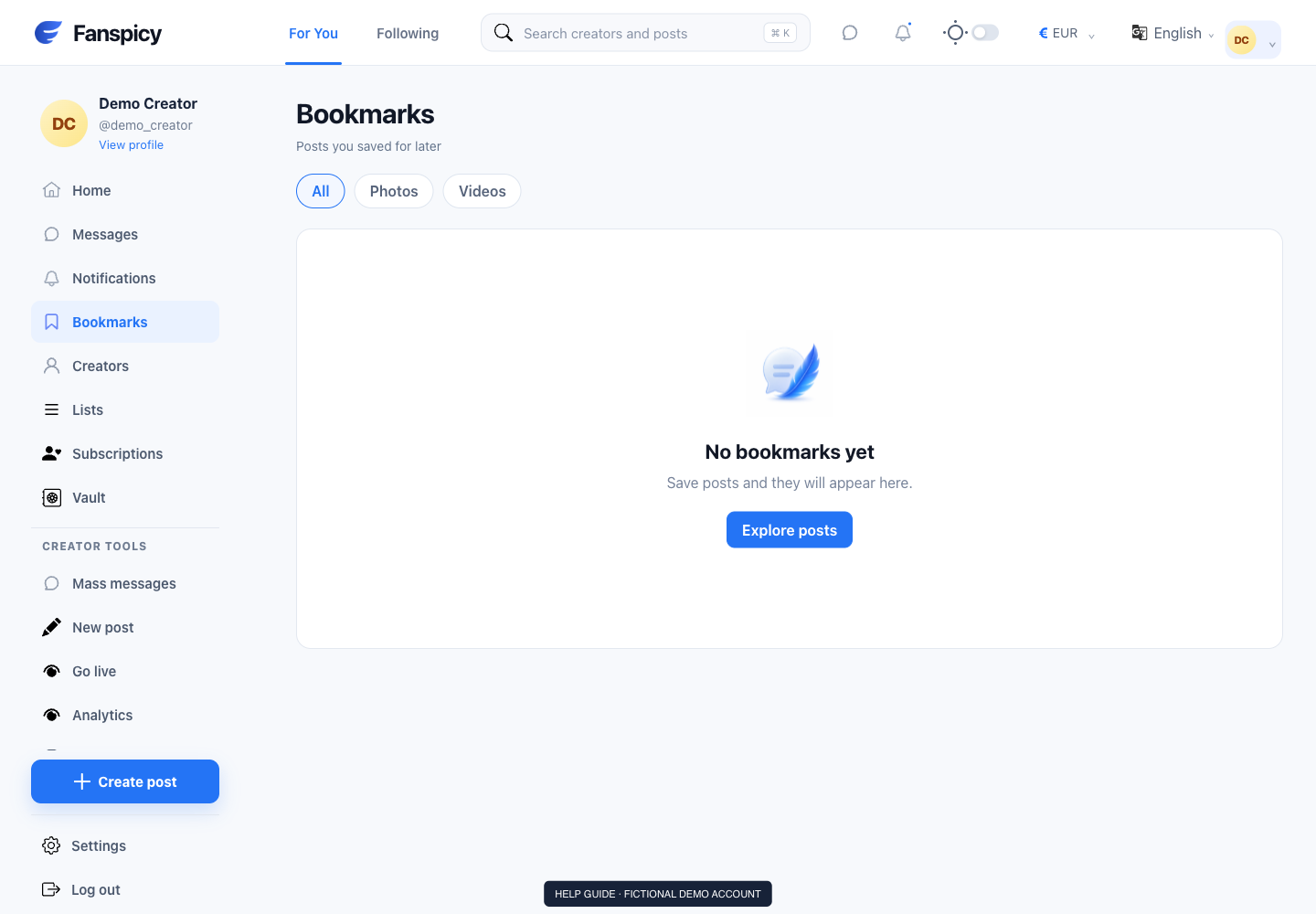
Check the result
A bookmark can refer to content you still need permission or payment to view. Removing an item from a list is not the same as blocking or unsubscribing.
If something is not working
If an item appears missing, check the active filters and whether the original content remains available. Do not repurchase content merely because a bookmark failed to open.
When reporting a problem, include the page, approximate time, what you expected and what happened instead. A screenshot of the error can help. Hide private messages and payment details that are unrelated to the issue. Never send your password, verification code, recovery code or API secret.