Live creator controls help you prepare a broadcast. Previewing the setup is different from starting a public stream.
Before you start
Sign in to the account you want to use. Creator-only controls appear only for accounts with the relevant access. If you manage someone else’s account, confirm you are in the correct workspace before making a change. The pictures use fictional example data; your balances, names, available options and screen layout may differ.
Step by step
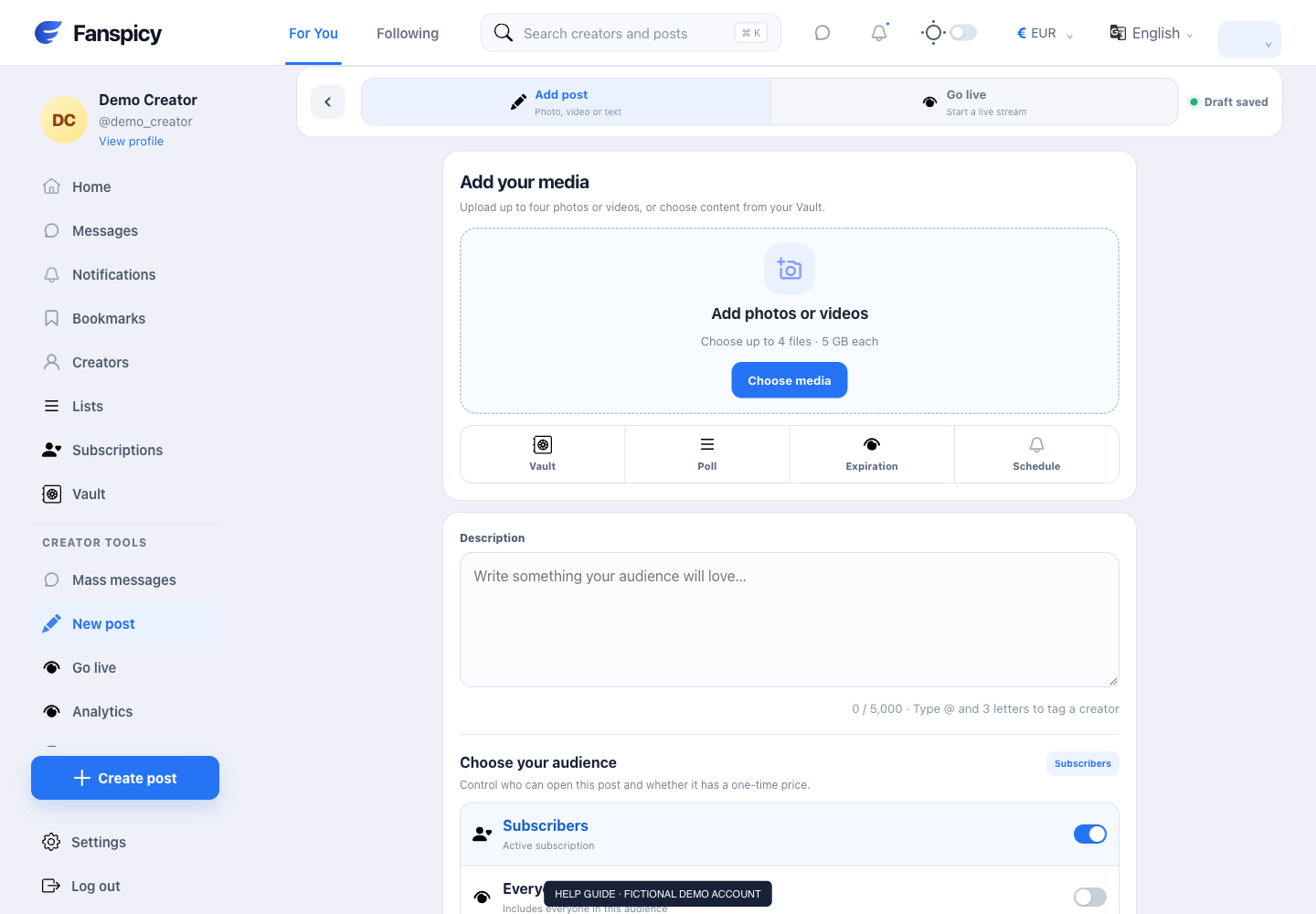
- Open Go live from Creator tools.
- Review the stream setup and any title, access or price controls shown.
- Select the intended microphone and camera and review browser permissions.
- Check the preview and any effects available before starting.
- Use the explicit start action only when you are ready to broadcast.
- Use the stream’s end control when finished and verify it has ended.
Check the result
A camera preview does not mean fans can already watch. Confirm the live status, audience setting and any price in the broadcast interface.
If something is not working
For a failed stream, report whether the issue is with setup, permissions, starting or playback. Never promise an exact repair time without a confirmed investigation.
When reporting a problem, include the page, approximate time, what you expected and what happened instead. A screenshot of the error can help. Hide private messages and payment details that are unrelated to the issue. Never send your password, verification code, recovery code or API secret.