Geo-blocking controls access by country using the options available to your account. It is different from blocking an individual fan.
Before you start
Sign in to the account you want to use. Creator-only controls appear only for accounts with the relevant access. If you manage someone else’s account, confirm you are in the correct workspace before making a change. The pictures use fictional example data; your balances, names, available options and screen layout may differ.
Step by step
- Open Settings → Geo-blocking.
- Review the current selected countries.
- Add or remove countries using the displayed controls.
- Check the list carefully before saving so you do not unintentionally restrict your audience.
- Save and revisit the settings to confirm your selections.
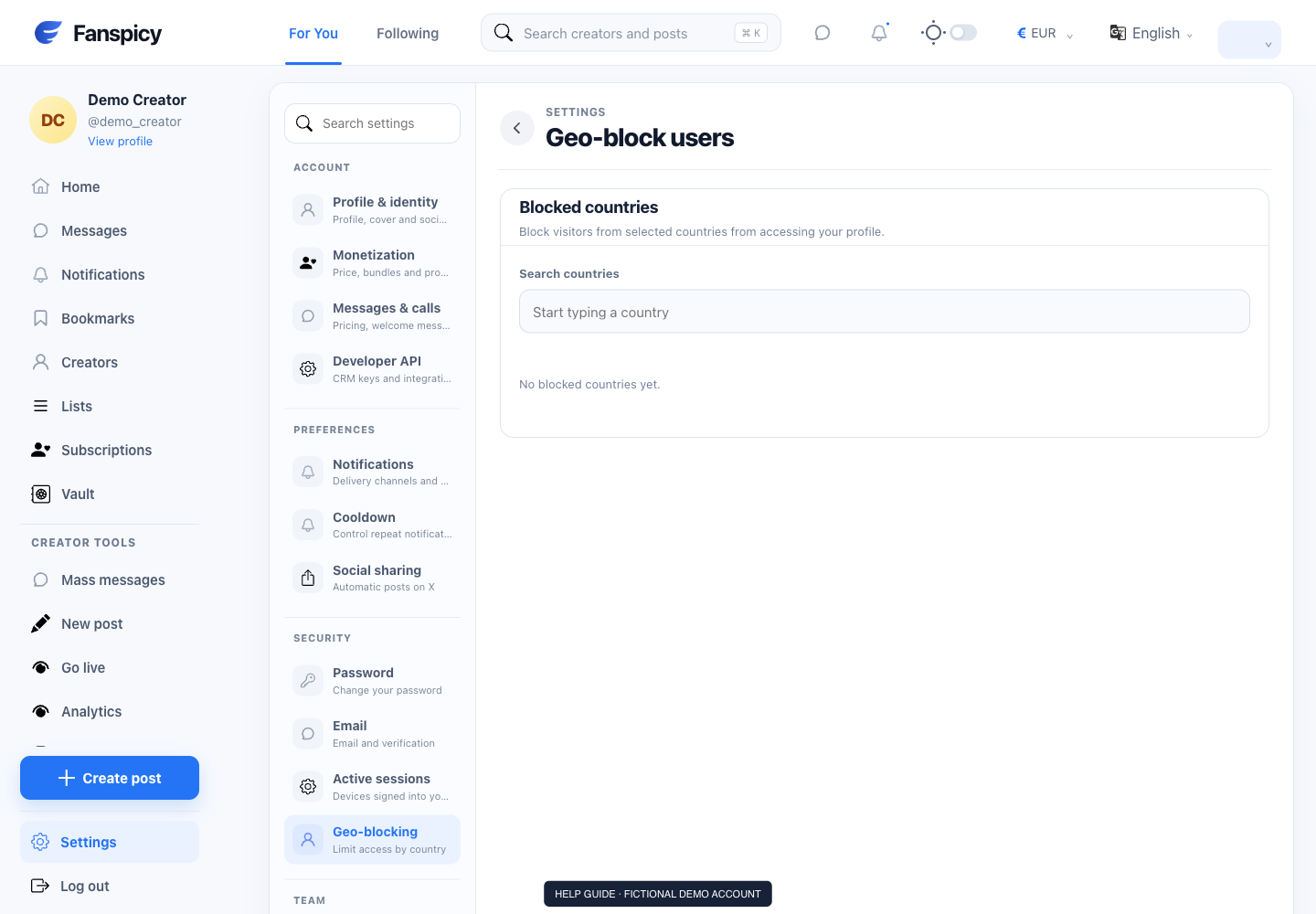
Check the result
The saved country list is the setting to check. Do not claim geo-blocking prevents every possible way a person could access information.
If something is not working
If access seems inconsistent, report the affected page and observed location behavior without asking another person for sensitive location records.
When reporting a problem, include the page, approximate time, what you expected and what happened instead. A screenshot of the error can help. Hide private messages and payment details that are unrelated to the issue. Never send your password, verification code, recovery code or API secret.