Review an existing post before editing its text, media or access settings. Removing a post is different from removing a file from a Vault folder.
Before you start
Sign in to the account you want to use. Creator-only controls appear only for accounts with the relevant access. If you manage someone else’s account, confirm you are in the correct workspace before making a change. The pictures use fictional example data; your balances, names, available options and screen layout may differ.
Step by step
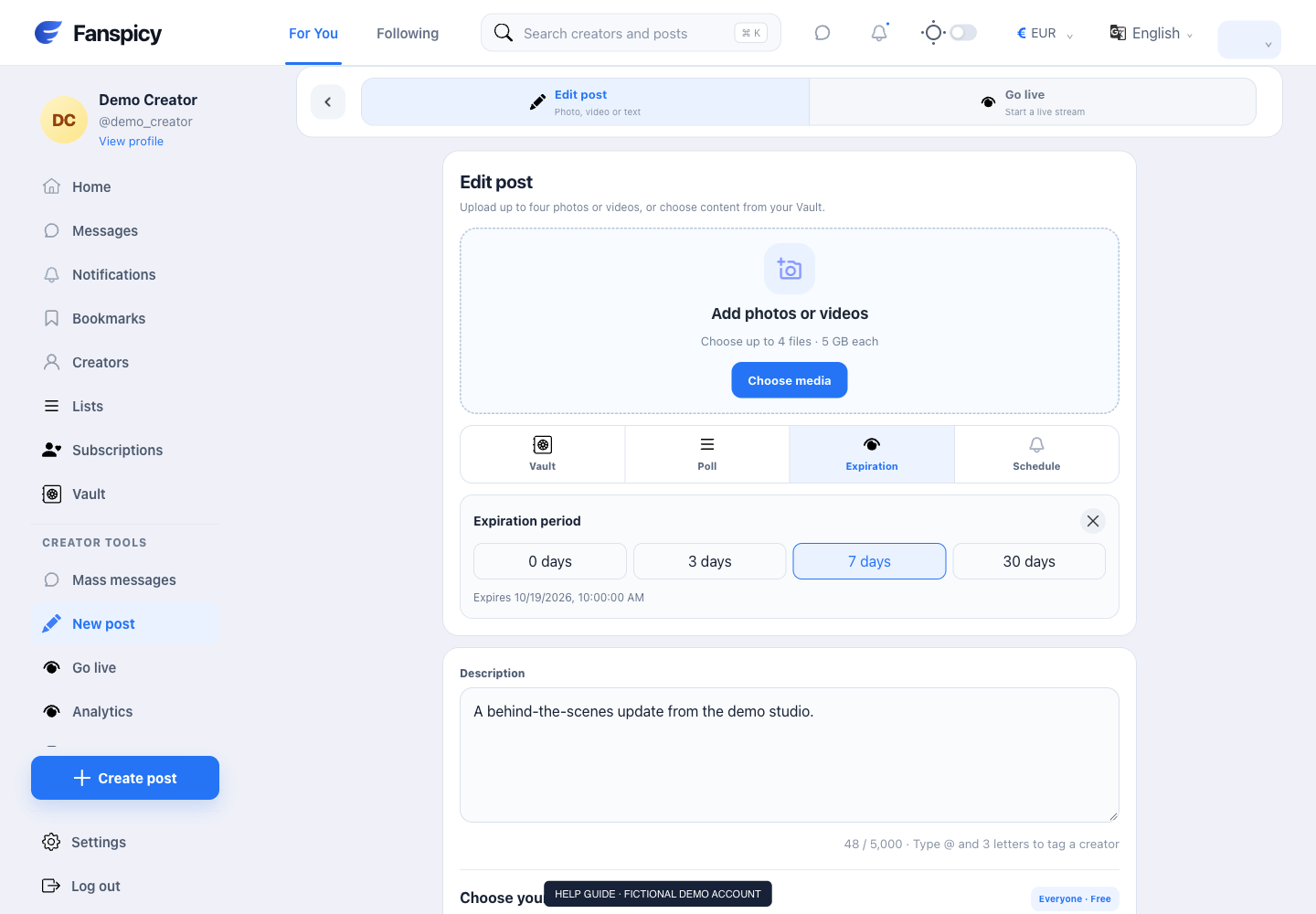
- Open the post from your creator profile.
- Use the post’s available edit control.
- Review the fields and media currently attached before making changes.
- Check the audience, price and schedule fields if they are editable for this post.
- Save and reopen the post to verify the result.
- For deletion, read the separate confirmation carefully before proceeding.
Check the result
Changes are confirmed by the saved post, not by a support reply. Existing purchases or access questions may need a separate record check.
If something is not working
If a purchased post becomes unavailable, identify the post and transaction for support. The AI cannot promise a refund or automatically decide whether the creator violated an agreement.
When reporting a problem, include the page, approximate time, what you expected and what happened instead. A screenshot of the error can help. Hide private messages and payment details that are unrelated to the issue. Never send your password, verification code, recovery code or API secret.