

Índice
Fan notifications on Fansly tell your subscribers when you post new content or go live, and they are the single most direct driver of immediate traffic to your page. Two delivery modes handle this: native push alerts (in-app, push notification, and email) managed by Fansly’s own systems, and external webhook-driven alerts pushed into Discord or other community channels via bots like Fansly Creator Bot and NotiFansly.
- Native alerts: Check your creator settings and confirm post and livestream notification toggles are active.
- External/webhook alerts: Verify your Discord bot’s channel permissions and confirm the NSFW channel flag is set if your content requires it.
Dica profissional: Run a test post immediately after setup to confirm both native push and bot-delivered alerts fire correctly before your next major content drop.
Índice
- What do fan notifications actually do for creators?
- What types of notifications can you use on and around Fansly?
- How does delivery differ between native alerts and Discord bots?
- How to set up notifications: native settings and Discord bot configuration
- How to manage notification preferences and filters
- Discord integrations and automatic role syncing
- Best practices for using notifications to maximize engagement
- Notifications as a privacy and mental-health tool
- Troubleshooting common notification delivery problems
- Principais conclusões
- The notification strategy most creators get backwards
- Useful sources and documentation to bookmark
- Fanspicy brings creator monetization and notifications together
What do fan notifications actually do for creators?
Notifications are time-sensitive content prompts delivered to fans the moment something new happens on your page. That simple function covers a lot of ground: driving views to new posts before the algorithm buries them, filling livestreams in the first critical minutes when attendance momentum matters most, and announcing limited or tier-exclusive content before it expires.
The real-time notification feature on Fansly keeps subscribers connected between posts, which directly supports retention. A fan who misses three posts in a row because they never saw an alert is far more likely to cancel than one who gets a timely nudge. Scarcity messaging (“24-hour exclusive for Tier 2 subscribers”) only works if the alert actually reaches the fan while the window is open. Notifications also support monetization by surfacing pay-per-view content and upsell moments at the right time.
What types of notifications can you use on and around Fansly?
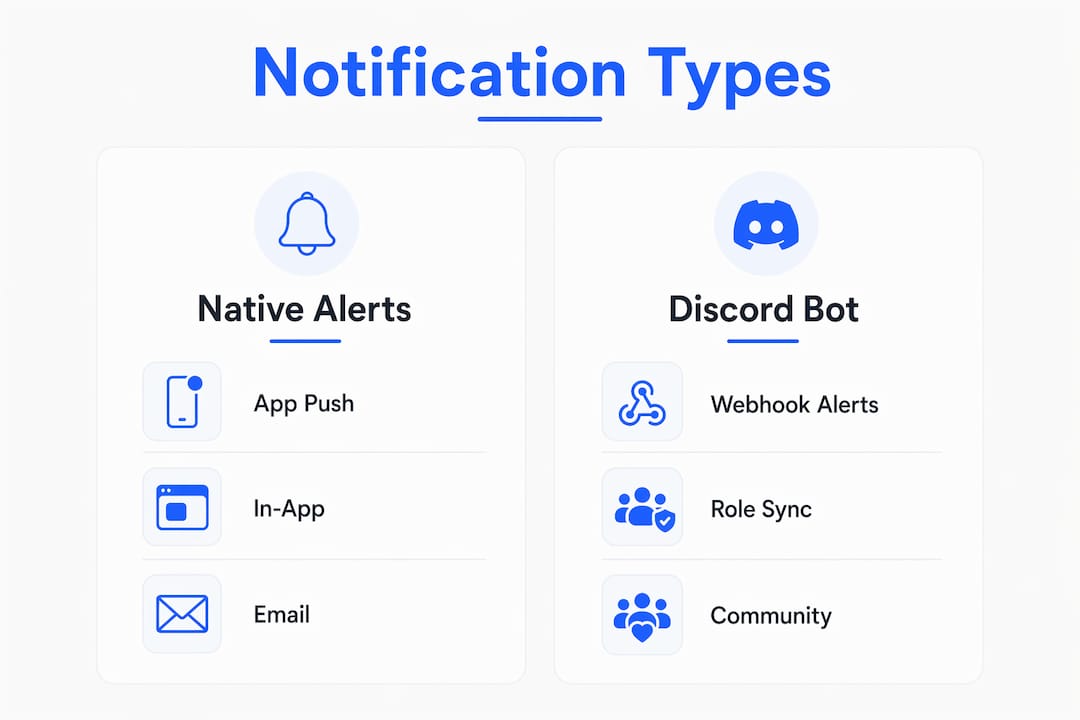
Fansly and its surrounding ecosystem offer four distinct notification types, each suited to a different goal:
- Native push/email alerts: Fansly sends these directly to a subscriber’s device or inbox when you post or go live. No extra setup required; they respect each fan’s individual mute settings.
- In-app feed alerts: Banners or feed highlights that appear inside the Fansly app. These depend on the fan actively opening the app, so they are lower-urgency than push.
- Webhook/Discord bot alerts: External services like Fansly Creator Bot or NotiFansly surface your posts and livestreams inside Discord channels, often with custom embeds, role mentions, and live images. These reach fans where they already spend time.
- Subscription and role status alerts: Notifications tied to a fan’s subscription state, such as a renewal reminder, a tier upgrade confirmation, or a role assignment in your Discord server.
Each type serves a different moment in the fan relationship. Push alerts capture impulse attention; Discord bot alerts activate community members who may not check Fansly daily.
How does delivery differ between native alerts and Discord bots?
The gap between native Fansly notifications and bot-driven alerts is wider than most creators expect, and choosing the wrong approach for your goals costs you reach.

| Dimension | Native Fansly alerts | Discord bot / webhook alerts |
|---|---|---|
| Delivery channel | App push, in-app, email | Discord channel message / embed |
| Setup required | None beyond creator settings | Bot invite, channel config, permissions |
| Message format | Platform-standard | Fully customizable (embeds, images, role pings) |
| Respects user mute | Yes, automatically | No — bot posts regardless of individual mute |
| Latency | Near-instant | Slight delay due to polling/caching |
| Privacy boundary | Stays within Fansly | Surfaces content in a third-party space |
| Best for | Broad subscriber reach | Engaged Discord community members |
Native delivery is handled entirely by Fansly’s infrastructure. No permissions to configure, no role hierarchy to manage, and every fan’s mute preference is respected automatically. The trade-off is zero control over message formatting.
Bot-driven alerts work differently. Tools like Fansly Creator Bot cache the first 100 posts and livestreams on initialization, then update as new content appears. That initial cache means the very first live alert after setup may be delayed while the bot builds its baseline. After that, updates are near-real-time. The payoff is rich formatting: custom embed colors, live preview images, and role mentions that ping exactly the fans you want to reach.
Dica profissional: Use native push for broad subscriber reach and a Discord bot for your most engaged community members. They are complementary, not competing.
How to set up notifications: native settings and Discord bot configuration
Native notification setup
- Log into your Fansly creator account and open Settings.
- Navigate to Notificações and confirm that post alerts and livestream alerts are toggled on for subscribers.
- Review fan-facing options: check whether fans can receive alerts per wall or only globally.
- Send a test post to a free-tier wall and confirm a push notification fires on a test device.
Discord bot setup (Fansly Creator Bot / NotiFansly)
- Invite the bot to your Discord server using the OAuth link from the bot’s documentation.
- Run the setup wizard (typically
/notifications initor the equivalent onboarding command). The wizard will prompt for:- Channel ID where alerts will post
- Message template (the text that appears with each alert)
- Role IDs to mention for post vs. livestream alerts
- The bot caches your first 100 posts on first run. Expect a short delay before the first live alert fires.
- For NotiFansly, configure custom live images and embed colors inside the dashboard to increase click-through on livestream alerts.
Permissions checklist before going live
- View Channel — bot must see the target channel
- Send Messages — required to post alerts
- Embed Links — required for rich embed formatting
- Manage Roles — required only if the bot assigns subscriber roles
- NSFW channel flag — must be enabled on the target channel for adult content
How to manage notification preferences and filters
Notification fatigue is real, and the fastest way to lose a subscriber is to flood their phone with alerts they did not ask for. A few targeted controls keep engagement high without burning out your audience.
- Fan-side muting: Fansly lets fans mute notifications from individual accounts. Proactively tell your community this option exists — fans who know they can mute without unsubscribing are less likely to leave entirely.
- Wall-level filtering: Configure alerts to fire only for specific walls (e.g., your premium wall) rather than every post. This keeps free-tier fans from being over-notified about content they cannot access.
- Livestream vs. post separation: Most bots let you assign different role mentions to post alerts and live alerts. Use this to let fans opt into only the alert type they care about.
- Preview content: Use short teasers in notification previews rather than full content. A teaser drives clicks; a full reveal removes the reason to click.
- Role pings: Reserve mass role pings for genuine events (a live session, a limited drop). Routine posts rarely justify pinging an entire role.
Dica profissional: Pin a short message in your Discord server explaining how fans can self-assign roles for post-only or live-only alerts. Self-selection improves engagement rates because fans receive only what they actually want.
Discord integrations and automatic role syncing
Role syncing is one of the most powerful features in the Discord bot ecosystem, and also the most common source of setup failures. The workflow has three stages: a fan links their Fansly account to Discord, the bot verifies their subscription status, and then assigns the appropriate role (follower, subscriber, or tier-specific).
NotiFansly supports automatic role syncing tied to subscription status, which means roles update when a fan subscribes, upgrades, or cancels without any manual intervention from you.
The critical requirement most creators miss: the bot’s Discord role must sit above every role it manages in the server’s role hierarchy. If the bot role is positioned below a fan role, role assignment and removal will fail silently or return a Missing Permissions error. Fix this by dragging the bot’s role to the top of your role list in Server Settings.
- Required permissions for role syncing: View Channel, Send Messages, Embed Links, and Manage Roles.
- Verification step: After setup, have a test account subscribe and confirm the role appears within the expected timeframe.
- Audit logs: Check Discord’s audit log after the test to confirm the bot performed the role add action.
- Role naming: Use clear, descriptive names (“Fansly Subscriber,” “Tier 2 Member”) so fans understand what they have access to.
Best practices for using notifications to maximize engagement
Timing and message brevity consistently outperform frequency. A concise teaser with a clear call to action drives more live attendance than a detailed preview that removes the incentive to click through.
- Post timing: Schedule content drops during your audience’s peak activity window. For most US-based creators, evenings (7–10 PM local time) and weekend afternoons tend to outperform midday weekday posts.
- Live alerts: Send the Discord bot alert and a native push at the same time your stream starts, not five minutes before. Fans who see “live now” act faster than fans who see “going live soon.”
- Short teasers: Keep notification preview text under 100 characters. State what is new and why it matters in one line.
- Tier-specific cues: Mention the tier in the alert (“Tier 2 exclusive — posted now”) so fans know immediately whether the content is accessible to them.
- CTAs: Every notification should end with one clear action: “Watch now,” “Unlock here,” or “Join the stream.”
Example post alert: “New exclusive set just dropped for Tier 2 — 24 hours only. Watch now →”
Example live-start alert: " Live now. Join before it fills up →"
Dica profissional: Pair your fan messaging strategy with notification timing so DM follow-ups land within minutes of a push alert — the combination drives significantly higher response rates.
Notifications as a privacy and mental-health tool
Notification controls are not just a convenience feature. For fans on adult platforms, they are a genuine privacy mechanism. A push alert that fires audibly in a public setting, or a Discord ping that surfaces subscription activity in a shared server, can expose a fan’s content preferences in ways they did not consent to.
Creators who teach fans about muting options and low-detail previews build more durable communities. Fans who feel in control of their notification experience stay subscribed longer. The Fansly API’s mute endpoint confirms this is a first-class feature: setting ignoreFlags to 1 mutes a specific user’s chat notifications entirely, and setting it back to 0 restores them on demand.
Practical steps to minimize privacy risk in your notification content:
- Use low-detail previews (no explicit thumbnails in embed images).
- Avoid including a fan’s username or tier name in public Discord alerts.
- Instruct fans to use role self-assignment so their subscription tier is not visible to other server members.
- Recommend that fans review their Discord notification settings for your server, including the option to suppress all pings from a specific channel.
For more on why discretion matters to your audience, the privacy considerations around adult platform use are worth understanding before you configure any public-facing alert.
Troubleshooting common notification delivery problems
Most notification failures trace back to one of five root causes. Work through this checklist before escalating to support.
| Problem | Likely cause | Fix |
|---|---|---|
| Bot posts nothing after setup | Missing channel permissions | Grant View Channel, Send Messages, Embed Links |
| Role not assigned after subscription | Bot role too low in hierarchy | Move bot role above all managed roles |
| 403 Missing Access error | Channel permissions or bot scope | Re-check required permissions in bot settings |
| No alerts for first posts after init | Initial cache building | Wait for the 100-post cache to complete |
| Embeds not rendering | Embed Links permission missing | Enable Embed Links on the target channel |
| NSFW content blocked | Channel not flagged NSFW | Mark the channel NSFW in channel settings |
- Verify the webhook URL is correct and has not been regenerated since setup.
- Re-run the
/notifications initcommand if the bot was removed and re-added to the server. - Check Discord’s audit log for failed role assignments — these appear as errors with a reason code.
- For persistent issues, consult the official Fansly Creator Bot documentation or the NotiFansly support channel.
Principais conclusões
Fan notifications on Fansly drive immediate traffic and retention when configured correctly across both native push and Discord bot delivery channels.
| Point | Details |
|---|---|
| Two delivery modes | Native push handles broad reach; Discord bots like Fansly Creator Bot and NotiFansly add rich formatting and role pings. |
| Bot cache behavior | Fansly Creator Bot caches the first 100 posts on init — expect a short delay before the first live alert fires. |
| Role hierarchy is critical | The bot’s Discord role must sit above every role it manages, or role sync will fail silently. |
| Privacy protects retention | Teaching fans to mute and use low-detail previews reduces churn and protects their discretion. |
| Fanspicy as next step | Fanspicy offers a creator-first paid social and live cam platform where notification-driven engagement strategies translate directly into monetization. |
The notification strategy most creators get backwards
The conventional advice is to send more notifications to drive more engagement. The data points in the opposite direction. Fans on adult platforms are especially sensitive to notification overload because the stakes of an unwanted alert are higher than on a mainstream platform. A single audible ping at the wrong moment can cost you a subscriber permanently.
The creators who see the strongest long-term retention treat notifications as a trust signal, not a broadcast tool. They send fewer alerts, but each one is precisely targeted: the right tier, the right channel, the right moment. They also invest five minutes in teaching their community how to self-manage alerts, which sounds counterintuitive but actually increases the open rate on the alerts that do go out. A fan who chose to receive your live alerts will show up. A fan who is being pinged against their will will not.
The Discord bot ecosystem adds real value here because it separates community members from passive subscribers. Someone in your Discord server is already more invested than someone who just follows your page. Routing your richest, most formatted alerts through that channel, while keeping native push lean and infrequent, is the configuration that tends to produce the best results for creators who have tested both approaches.
Useful sources and documentation to bookmark
- Fansly Creator Bot Notifications Docs — Official setup wizard instructions, cache behavior explanation, and notification configuration options.
- NotiFansly Getting Started Guide — Covers Discord permissions, role syncing setup, and common 403 error fixes.
- NotiFansly Landing Page — Overview of instant post alerts, livestream notifications, and role-syncing features.
- Fansly API: Mute Chat Notifications — Official API reference for muting a specific user’s chat alerts programmatically.
- How to Turn Off Notifications for Individual People on Fansly — Community how-to guide for fan-facing mute controls.
- discord-fansly-notify (GitHub) — Unofficial open-source notifier tool for creators who prefer a self-hosted Discord integration.
- Discord Webhooks Introduction — Discord’s official primer on webhooks, useful for understanding how bot-delivered alerts reach your server.
Fanspicy brings creator monetization and notifications together
Fanspicy is a paid social media and live cam platform built for creators who want more than a passive content feed. Where Fansly gives you the notification infrastructure, Fanspicy gives you the monetization layer that makes every alert count: direct fan payments, live cam sessions, and a creator-first revenue model designed to reward engagement, not just follower counts. The notification strategies covered in this guide translate directly to Fanspicy’s environment, where fan loyalty tactics and timely alerts combine to drive real payouts.
If you are ready to put these notification best practices to work on a platform built around creator revenue, visit Fanspicy and set up your profile today.