
目录
StreamYard is a live video studio that runs in your web browser. You connect the places you want to broadcast, open a studio, pick your camera and microphone, invite guests if you like, and click Go Live. StreamYard then sends your produced show to the destinations you chose. According to its official Help Center, no desktop download is required, and a computer with a mic and camera is enough to get started.
This guide walks through each step in order, explains what happens behind the scenes when you multistream, covers recordings and plan limits, and shows where a creator’s income fits into the picture.
TL;DR
- StreamYard is a browser-based studio for live streaming and recording. You do not install software to use it.
- The flow is simple: connect destinations, create a studio, set your camera and mic, add guests, then go live.
- Multistreaming is handled in the cloud: you send one stream to StreamYard, and it distributes the show to your chosen destinations.
- Recordings live in a Video Library, and storage, guest counts and destinations depend on your plan.
- A production tool helps you look good on camera. If you want fans to pay you directly for live shows, you also need a place built for creator income, which is where we come in.
目录
- What StreamYard actually is
- What you need before you start
- How to set up your first live stream, step by step
- How guests join your show
- How multistreaming works
- Recording with StreamYard
- Is StreamYard free?
- Where StreamYard fits in a creator’s workflow
- A sensible pre-show checklist
- Our perspective
- Turn your live shows into earnings with Fanspicy
- 常见问题
- Sources
What StreamYard actually is
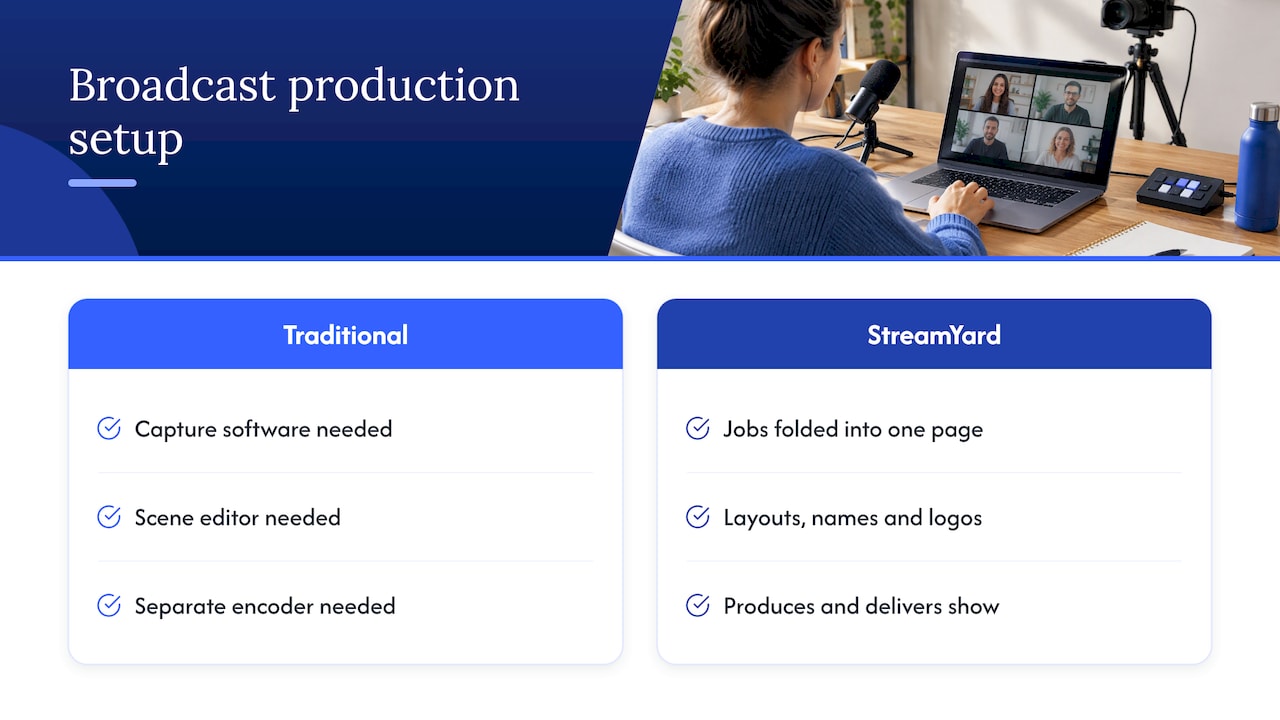
Think of StreamYard as a small TV control room that lives in a browser tab. Traditional broadcast setups need capture software, scene editors and a separate encoder. StreamYard folds those jobs into one web page. The official description calls it a live video production and recording tool, and that is a fair summary: it produces the show (layouts, names on screen, logos, guests) and then delivers it.
That is why it appeals to solo creators, podcasters, teachers, small businesses and anyone who wants a polished show without a technical learning curve. You open a link, test your devices and start.
What you need before you start
The requirements are modest. The Help Center lists a supported browser, a camera, a microphone and a stable internet connection, and it recommends Ethernet where possible. A wired connection matters because a live stream is only as steady as the upload path behind it.
A few practical extras make the first show smoother:
- Headphones. They stop your guests’ voices from feeding back through your mic.
- Front lighting. A lamp facing you beats an overhead light every time.
- A closed-down browser. Shut extra tabs and apps so your computer has room to work.
- A written run of show. Even three bullet points keep a live session on track.
How to set up your first live stream, step by step
1. Sign in and connect destinations
After you sign in, you connect the accounts where you want to broadcast. StreamYard lists Facebook, YouTube, Instagram, LinkedIn, X, Twitch and other platforms as places you can stream to.
2. Create the studio
The official path is to choose Create, then Live stream, then Studio. You select your destinations, enter the stream details and create the studio, as laid out in the live stream guide. At this step you can also:
- add a title and description,
- customize that metadata for each destination,
- upload a thumbnail,
- schedule the event for later.
Scheduling is worth understanding. It creates an announcement your audience can see, but the host still has to enter the studio and click Go Live at the scheduled time. Nothing starts by itself.
3. Choose camera and microphone
Inside the studio, you select your camera and microphone inputs. Test them before anyone is watching. If your picture looks dark or your voice sounds thin, fix it now, not mid-show.
4. Build the look of the show
The studio lets you pick layouts and add branding assets such as logos, overlays, backgrounds, videos, slides and music. You can keep this minimal: one logo and one clean background already look professional. Branding options expand on paid plans.
5. Go live
When the preview looks right, click Go Live. To end, you end the broadcast from the same studio. Your viewers see the produced version, with the layout and graphics you chose, not the raw camera feed.
How guests join your show
Guests are one of StreamYard’s core features. The process is deliberately light for them:
- The host sends the guest the studio link.
- The guest allows camera and microphone access and chooses their devices.
- The guest enters a display name and joins the studio.
- The host decides when to bring the guest on screen.
According to the guest instructions, guests cannot start or stop the broadcast, change settings, add themselves or shared content, or control graphics and layouts. In practice this means joining is separate from control. Your guest can talk and contribute, while you decide what appears on screen and when the show starts and ends. That separation is reassuring when you invite someone who has never streamed before.
Tips for smoother guest sessions
- Send the link ahead of time and ask guests to test in the waiting area.
- Ask guests to wear headphones.
- Agree on a signal for when you will bring them on screen.
- Keep a backstage chat open for quick notes that the audience does not see.
How multistreaming works
Multistreaming means broadcasting to several platforms at once. The official workflow is the same as a normal stream: create a live stream, select each connected destination, add the title and description, enter the studio and click Go Live, as the multistreaming guide explains.
The interesting part is what happens after you click. StreamYard describes a cloud model: your device sends one stream to StreamYard, which then distributes it to the selected destinations. You are not asked to push a separate outgoing stream to every platform from your own connection. That is the reason your upload demand stays broadly similar as you add destinations.
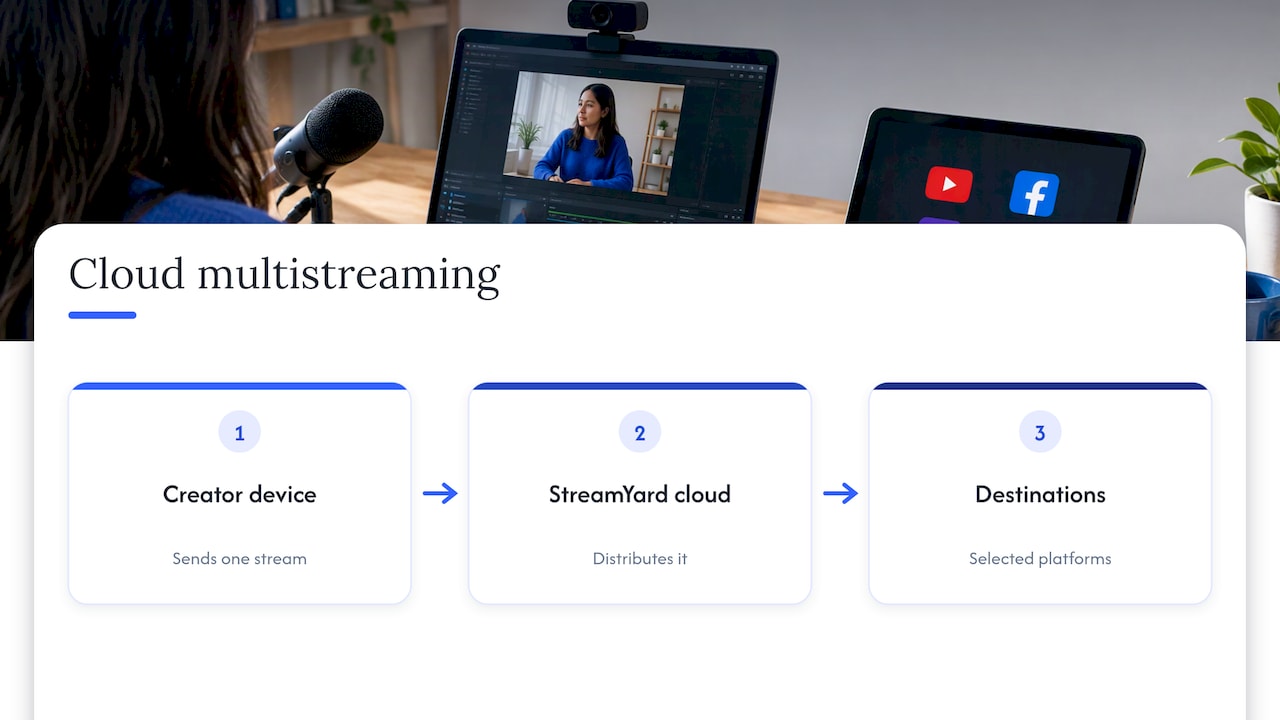
The number of destinations depends on your plan. The guide gives paid-plan limits of 3 destinations on Core, 8 on Advanced and 10 on Business.
One point for any creator: each destination has its own rules about what content is allowed and how live shows must be labeled. Read those rules for every platform you add before you broadcast to it.
Recording with StreamYard
StreamYard can record as well as stream. For a recording, you choose Recording, name the session, optionally enable local recordings for each participant, enter the recording studio, click Record and finish with End recording. Pause, restart and cancel controls are available during a session, per the recording guide.
Cloud and local recordings
A cloud recording is captured by StreamYard. A local recording is captured on each participant’s own device, so it creates a separate audio and video file for every person, even if someone has weak internet. That is useful for podcasts and interviews where audio quality matters more than speed.
Finding and downloading files
Recordings are accessed through the Video Library. Per the download guide, paid-plan Owners and Admins can download cloud video and audio recordings, and local files can be downloaded individually or together. The same page says Core and Advanced accounts can store up to 50 hours, the Free plan stores up to 5 hours at a time, and live streams created on the Free plan are not recorded in the library.
Editing options
If you edit your shows afterward, local recordings can be exported as project files for Adobe Premiere Pro, Final Cut Pro X and DaVinci Resolve, with files aligned and synchronized. On the Advanced plan, you can also enable separate cloud audio tracks, which download as WAV files for participants and MP3 files for video-asset audio.
Is StreamYard free?
StreamYard has a Free plan. Paid plans add features, and the plan features page lists the main differences:
| 特点 | What paid plans add |
|---|---|
| Branding | Custom logos, overlays and backgrounds |
| Streaming | Simultaneous streaming to multiple destinations |
| Recording | HD broadcast recordings up to 10 hours per stream |
| Participants | More on-screen and backstage participants |
| Guest options | Guest destinations |
| Production | Pre-recorded streaming and local recordings |
| Storage | More storage |
| Delivery | Custom RTMP destinations |
Prices change, so check StreamYard’s own pricing page for current numbers before you commit.
Where StreamYard fits in a creator’s workflow
StreamYard answers the production question: how do I make a live show look clean, bring in guests and reach several audiences? It does not by itself answer the income question: how do my fans pay me during and after the show?
For creators, those are two different jobs. A studio makes the broadcast. A monetization platform is where the audience subscribes, tips, buys exclusive content and sends private messages. Many creators think about the two together, because a polished show is only worth the effort if it leads to payouts.
If you are mapping out your own setup, these guides cover the surrounding pieces:
- How live streaming works for the basics of capture, encoding and delivery.
- Live stream setup workflow for a repeatable pre-show routine.
- Live streaming best practices for pacing, engagement and consistency.
- How to attract viewers for growing an audience that returns.
A sensible pre-show checklist
Whatever tool you use, the same routine prevents most live problems:
- Plug in Ethernet or sit close to your router.
- Close other apps and browser tabs.
- Put on headphones and test your mic level.
- Check lighting and camera framing in the preview.
- Write your title and description, and add a thumbnail.
- Open the backstage chat for guests and run a short test.
- Confirm each destination is connected and its rules are respected.
- Click Go Live, then check that the stream appears where you expect it.
Our perspective
We see StreamYard as a good example of how far browser-based production has come: a creator can open a tab and run a show with layouts, guests and branding in minutes.
What we care about is what happens next. A great show should lead to a real income stream. That is why Fanspicy is built around revenue share, so creators keep a higher percentage of what they earn, and around direct audience ownership, so the fans you build are yours.
Creators also need flexibility. On Fanspicy, they can sell subscriptions, exclusive content, paid posts, private messages, bundles and live streams, and receive tips, all in one place. Creators do not pay fees to join or use the platform, and content can be migrated from other platforms easily.
Our view is simple: use the best production tools you like, and pair them with a platform designed so your audience can pay you directly.
fan
Turn your live shows into earnings with Fanspicy
If you are ready to earn from your audience, Fanspicy is a paid social media and live cam platform for independent creators. You can offer subscriptions, exclusive content, private messages, live streams, bundles and paid posts, and fans can send tips during your shows.
Creators can start on the Fanspicy home page, and the become a model page explains how to set up exclusive content, tips and paid posts. For a deeper look at running paid live sessions, read our guide to live streaming for adults.
常见问题
Do I need to download anything to use StreamYard?
No. StreamYard runs in a web browser, and the official Help Center says no downloads are required. You need a computer with a camera and microphone, a supported browser and a stable internet connection.
Can I stream to more than one platform at once?
Yes, on paid plans. StreamYard sends your stream to its cloud and distributes it to the destinations you select. The official guide lists 3 destinations on Core, 8 on Advanced and 10 on Business.
Can guests control my broadcast?
No. Guests join through a link, choose their devices and enter a display name, and you decide when they appear. They cannot start or stop the broadcast, change settings or control graphics and layouts.
Does StreamYard record my live streams?
Yes, with limits by plan. Recordings are found in the Video Library. The official guide says Core and Advanced accounts can store up to 50 hours, the Free plan up to 5 hours, and Free-plan live streams are not recorded in the library.
How can I earn money from my live shows?
You need a platform where fans can pay you. On Fanspicy, creators sell subscriptions, exclusive content, private messages and live streams, and receive tips, with the platform taking a percentage commission per transaction.
Sources
- First Steps – StreamYard Help Center
- How to Create a Live Stream – StreamYard Help Center
- Guest instructions – StreamYard Help Center
- How to Multi-stream – StreamYard Help Center
- StreamYard: Multistreaming
- StreamYard: Easiest Live Streaming and Recording Software
- How to Create a Recording – StreamYard Help Center
- How Do I Download My Recordings In StreamYard?
- Exporting Local Recordings as Project Files
- Cloud Recording – Individual Audio Tracks
- StreamYard’s paid plan features