
جدول المحتويات
A YouTube live stream is a real-time video broadcast with a live chat beside it. You send video from a phone, a webcam or encoder software, YouTube delivers it to viewers within seconds, and the audience reacts as it happens. YouTube describes live streaming as a way to interact with your audience in real time through video, chat and more. If you earn from fans directly, the useful question is what happens after the broadcast ends. That is where a platform built for paid subscriptions, tips and private messages, like فانسبيكي, fits next to a free video platform.
TL;DR
- You go live in three ways: mobile app, webcam in a browser, or encoder software that sends your feed to YouTube with a server URL and stream key.
- To stream you need a verified channel, no live-streaming restrictions in the past 90 days, and to be at least 16. First-time activation can take up to 24 hours.
- You do not need 1,000 subscribers. Mobile streaming needs 50, and below 1,000 YouTube may limit your audience.
- Viewers find streams through subscriber feeds, scheduled-event reminders, the Shorts feed (for vertical streams) and recommendations. Chat, Super Chats and memberships are how they interact and pay.
- Streams under 12 hours are archived automatically. Plan where your paying fans go once the stream ends.
جدول المحتويات
- The basic flow, from camera to viewer
- Who can go live on YouTube
- Three ways to stream: mobile, webcam, encoder
- Set up the stream before you go live
- How viewers find and join a live stream
- What viewers can do during a stream
- Common problems and quick fixes
- Where a free video platform stops and a creator platform starts
- Our perspective
- Start earning from your live audience
- الأسئلة الشائعة
- Sources
The basic flow, from camera to viewer
Every live stream, on any platform, follows the same chain. Your camera and microphone capture video. Software (the phone app, the browser or an encoder) compresses it and sends it over the internet to the platform. The platform processes it and delivers it to everyone watching. Chat messages travel the other way, from viewers back to you.
Three things shape the experience:
- Your upload connection. The platform can only deliver what you send it. A weak or unstable upload shows up as buffering or lower quality for everyone.
- Latency. This is the delay between what your camera captures and what the viewer sees. YouTube explains that lower latency can make interaction feel more immediate but may increase buffering. It is a trade-off, so match it to your format: a Q&A benefits from low delay, while a polished performance can tolerate more.
- Chat. The live chat is where viewers talk to you and to each other, and it is what makes a live stream feel different from a video upload.
When the stream ends, YouTube says that streams under 12 hours are automatically archived when encoder streaming stops, and a channel may post highlights or a replay afterward, according to YouTube’s overview of live streams.
Who can go live on YouTube
YouTube sets a few conditions before the live button works. According to YouTube Help, you need:
- a verified channel (verification is done with a phone number);
- no live-streaming restrictions on the channel in the previous 90 days;
- to be at least 16 to stream on your own.
The first time you enable live streaming, YouTube says activation may take up to 24 hours. Do this a day before your first planned broadcast, not an hour before.
Do you need 1,000 subscribers?
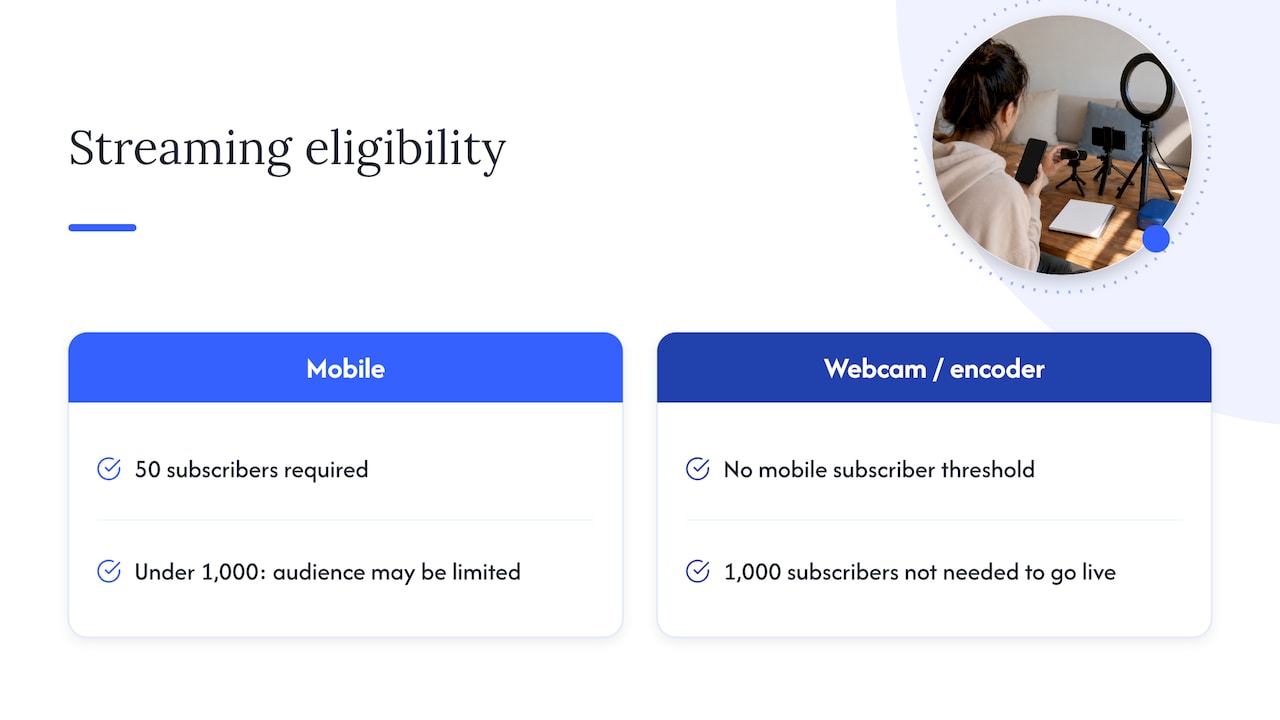
No. The 1,000 figure belongs to other YouTube features, not to going live. For mobile streaming, YouTube’s requirement is 50 subscribers. YouTube also says a channel under 1,000 subscribers can still stream from mobile, but YouTube may limit the audience. Webcam and encoder streaming do not use the mobile subscriber threshold.
Restrictions and rules
Your channel’s live-streaming ability can be switched off temporarily or permanently. YouTube lists the reasons and the consequences in its page on avoiding restrictions on live streaming, including the rule that if you are under 16, an adult must be visibly present in the stream. Read that page before you build a schedule around YouTube, because a restriction pauses everything for at least 90 days. Creators who work with adult content should know that a general-audience video platform and an adult-friendly platform have different content boundaries, which we come back to below.
Three ways to stream: mobile, webcam, encoder
YouTube offers mobile, webcam, encoder and console streaming. For most creators the decision is among the first three.
| Method | What you need | Best for | Watch out for |
|---|---|---|---|
| Mobile | The YouTube app, 50 subscribers, a compatible Android 8.0+ or iOS 8+ device | Quick, spontaneous updates | Subscriber threshold; limited layout control |
| Webcam | A computer and a webcam; no separate encoding software | Talking-head sessions, Q&As | One camera, basic production |
| Encoder | Encoder software, a server URL and stream key | Gameplay, screen sharing, multi-camera shows | A longer setup and more to test |
The requirements for the mobile option come from YouTube’s mobile live stream page. YouTube describes webcam streaming as a computer option that needs no separate encoding software, while encoder streaming supports screen sharing, gameplay, external audio and video hardware and productions with several cameras or microphones.
How encoder streaming works, step by step
The encoder route is the one that confuses newcomers, so here is the sequence YouTube describes:
- Open Live Control Room in YouTube Studio and create or select a stream.
- Copy the server URL and stream key into your encoder.
- Start the encoder. YouTube receives the feed and shows a preview.
- Go live when the preview looks right.
- Stop sending content from the encoder to end the stream.
The stream key matters most. YouTube describes it as the credential that tells your encoder where to send the feed and lets YouTube accept it. Treat it like a password: anyone who has it can send video to your channel, so never show it on screen or paste it into a chat.
Set up the stream before you go live
The settings you choose in Live Control Room decide how the stream looks and how it behaves. Before each broadcast, set:
- Title, description, category and thumbnail. These are what a viewer sees in a feed before deciding to click.
- Audience and privacy. Choose who can watch.
- Chat settings. Decide whether chat is open, filtered or limited.
- Latency. Pick the delay that suits your format.
- Monetization options where your channel is eligible.
Primal Video’s 2025 creator guide recommends configuring these options in Live Control Room before broadcasting, and it is a sound habit.
Schedule the stream whenever you can. YouTube says scheduled streams can show up in subscribers’ feeds as upcoming events, where viewers can choose “Notify me”. A reminder that arrives before the start is a free way to bring people to the first minute.
If you want a step-by-step setup that is not tied to YouTube, our guides on how to set up live streams و what happens between camera and viewer cover the equipment and test routine.
How viewers find and join a live stream
Discovery on YouTube comes from a few places:
- Subscriber feeds and notifications. Your existing audience sees the stream, or the scheduled event, first.
- The Live tab and recommendations. YouTube says its recommendations rely on signals such as watch history, search history, subscriptions, likes, dislikes, feedback and satisfaction surveys, and that the system compares viewers with people who have similar viewing habits.
- The Shorts feed. YouTube says viewers can come across vertical live streams in the Shorts feed, including people who are not yet subscribers.
The practical lesson is that a live stream is found mostly by people who already like what you make, plus whoever the system matches to your topic. Nobody can promise that a stream will be recommended. What you can control is the clarity of the title and thumbnail, a consistent schedule, and how quickly you give viewers a reason to stay and chat.
What viewers can do during a stream
A live stream is a two-way event. YouTube lists that viewers can send chat messages and reactions, buy Super Chats or Super Stickers, buy channel memberships, and swipe to other live streams.
Chat limits and filters
A few details help you moderate and plan:
- Live chat appears on YouTube watch pages, not in embedded players.
- A viewer can send up to 11 messages every 30 seconds, and each message is limited to 200 characters, per YouTube’s live stream page.
- Viewers can switch between two views. Top chat filters messages such as potential spam, while Live Chat is unfiltered and shows messages as they arrive.
So if you read chat aloud, remember that some of your viewers see a filtered version and others see everything. Bring a moderator for larger streams, or lower the pace of questions you take.
Paying during a stream
Super Chats, Super Stickers and memberships are YouTube’s built-in ways for fans to pay. They depend on your channel qualifying for the relevant programs, and they sit inside YouTube’s content rules. That is fine for many creators. For others, particularly those making adult or personal content, the question is whether the audience, the rules and the payouts match the business.
Common problems and quick fixes
Most failed streams come down to a short list:
- The Go Live button is missing. Check verification, the 90-day restriction history and whether first-time activation (up to 24 hours) has finished.
- The preview never appears in encoder mode. Re-copy the server URL and stream key, and confirm the encoder is actually started.
- Buffering for viewers. Check your upload connection first, then consider whether a lower-latency setting is adding strain.
- Chat is overwhelming. Use a moderator and keep an eye on which chat view you are reading.
- The stream ended and you want it back. Streams under 12 hours are archived automatically, so look in your channel’s content list before assuming it is lost.
Run a private or unlisted test stream before every new setup, and then again after you change hardware or software.
Where a free video platform stops and a creator platform starts
YouTube is built to reach a broad audience with video. Its tools for earning (ads, Super Chats, memberships) come with eligibility conditions and general-audience content rules. A creator whose income comes from fans paying directly for subscriptions, exclusive posts, private messages and tips needs something different: a place where the audience belongs to the creator and every live moment can turn into a paid relationship.
This is the gap Fanspicy is designed to fill. It is a paid social media and live cam platform where independent creators sell subscriptions, exclusive content, private messages, live streams and bundles, and receive tips. Creators do not pay fees to join or use the platform. Our positioning is that creators keep a higher percentage of their earnings, own their audience directly, and can move content over from other platforms with ease. Our other guides go further on live streaming for adults و the best live streaming practices.
A simple way to combine both
Many creators use a public platform for reach and a creator platform for revenue. The routine looks like this:
- Use short public streams or clips to show your style and personality.
- Point viewers to your creator page for the longer, paid sessions.
- Offer subscribers exclusive content, private messages and live streams, with tips as an add-on.
- Bundle your best content for new fans so the first purchase is easy.
For ideas on what to put in those paid sessions, see our list of live cam content types that boost engagement and our guide to attracting viewers.
Our perspective
The creator economy rewards people who own their audience. A stream that ends and leaves you with a replay and a comment section is a good start, but it is not a business yet.
We built Fanspicy so that the moment a fan enjoys a live stream, there is a clear next step: subscribe, send a tip, ask for a private message, or buy a bundle. Creators keep more of what they earn, bring their content from other platforms without starting over, and choose the mix of monetization that suits them.
If you are an independent creator, treat every live stream as the front door to a direct relationship with your fans. We think that is the most durable way to earn.
fan
Start earning from your live audience
If you already stream, or you are about to, Fanspicy gives your audience somewhere to pay you directly. Fans can subscribe to your page, join your live streams, message you privately and send tips, and you can sell exclusive content and paid posts from your creator page. You can create your page on فانسبيكي or see how it works for new creators on the become a model page.
Bring your best sessions, your regulars and your schedule, and turn them into recurring income on your terms.
الأسئلة الشائعة
How does YouTube live streaming work?
You send video from a phone, webcam or encoder to YouTube, which delivers it to viewers in near real time. Viewers chat and react while you broadcast. When you finish, streams under 12 hours are archived automatically as long as you used an encoder.
Do I need 1,000 subscribers to go live on YouTube?
No. Mobile streaming requires 50 subscribers, and a channel under 1,000 can still go live, although YouTube may limit its audience. Webcam and encoder streaming need a verified channel and no recent restrictions instead.
What are the rules for live streaming on YouTube?
You must verify your channel, be at least 16 to stream alone, and have had no live-streaming restriction in the last 90 days. YouTube explains how channels lose and regain access on its live streaming restrictions page.
How do viewers find a YouTube live stream?
They see it in subscriber feeds, in scheduled-event reminders, in the Shorts feed for vertical streams and through recommendations based on viewing habits. Scheduling ahead lets viewers choose “Notify me”.
Can I earn directly from fans during a live stream?
On YouTube, fans can buy Super Chats, Super Stickers and memberships. On Fanspicy, fans can subscribe, tip, buy exclusive content and request private messages directly from your creator page.
Sources
- Get started with live streaming – YouTube Help
- Learn about live streams – YouTube Help
- Create a YouTube live stream with an encoder – YouTube Help
- Create a live stream on mobile – YouTube Help
- Create a live stream via webcam – YouTube Help
- Manage live stream settings – YouTube Help
- How YouTube recommendations work – YouTube Help
- Learn about Live Chat – YouTube Help
- Avoid restrictions on YouTube live streaming – YouTube Help
- How to Live Stream on YouTube (2025 Guide) – Primal Video